
Skip to the content

Users & Groups

Who Can See What, Decided by You

Most school systems ship a fixed set of roles and expect your school to fit them. Yours does not. A head of department who also teaches, a nurse who needs medical records but nothing academic, a finance officer who should see fees and never a grade: none of those are standard.

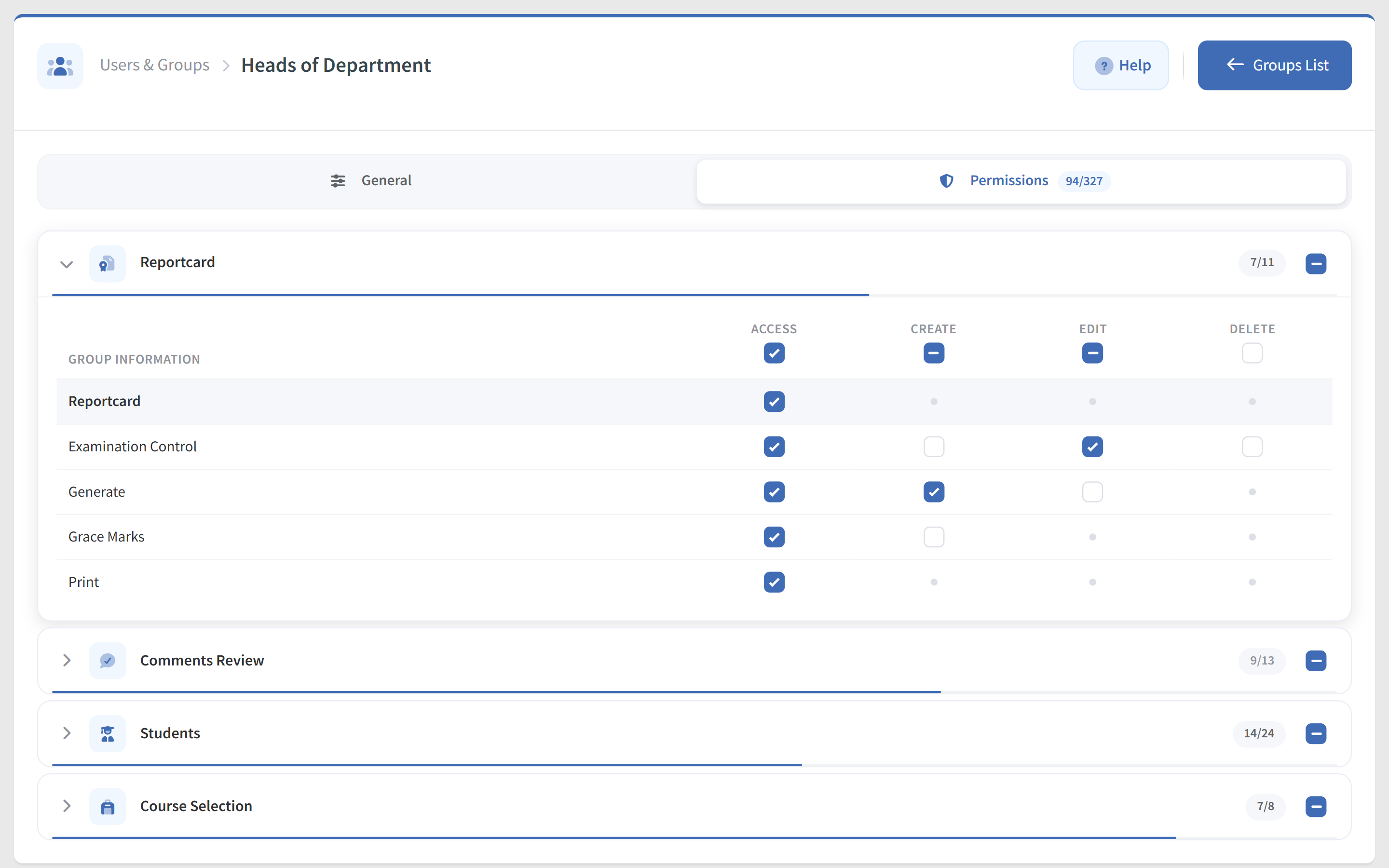
Permissions for a Heads of Department group in SCL, set module by module, with access, create, edit and delete ticked for each report card page.

In SCL every screen and every action is governed by permissions you grant per group, down to whether a user may access, create, edit or delete. Because the student record is shared by everything, this is the control that decides what each person actually experiences.

It is also what makes one system safe to run across a whole school. The same record can carry medical details only the clinic and the child's own teachers open, behaviour incidents limited to pastoral staff, fees visible to finance and the family, and the gradebook a teacher works in. Parents and students reach only their own, through the parent and student portals.

Groups and Permissions

Groups Your School Shapes

Every person in SCL belongs to a group, and the group decides which pages they open and what they may do on each one. Four system groups come with SCL, and every other group is one your school creates.

System and Custom Groups

Administrator, Teacher, Parent and Student are SCL's four system groups: their permissions can be edited, but they cannot be renamed or deleted. Every other group, such as Registrar or Accountant, is one your school creates, and any group's permissions can be copied onto another.
Page by Page Permissions

For every page of every module, a group gets Access, Create, Edit or Delete, ticked one by one, and a live count shows how many permissions it holds out of all on offer.

Group Power

Every group has a Group Power rank. Staff manage only the groups at or below their own rank and cannot raise a group above it, so nobody grants more than they hold.

Who Parents Can Reach

For each custom group, the school decides whether parents can send its members private messages and book appointments with them. Every group can also have its own landing page, the first screen its members see after signing in.

AI Assistants by Group

Each group has its own switch for connecting AI assistants such as Claude or ChatGPT, on for administrators, off for every new group and never offered to parents, students or alumni. An assistant does only what the member's own permissions allow.

A Log of Every Request

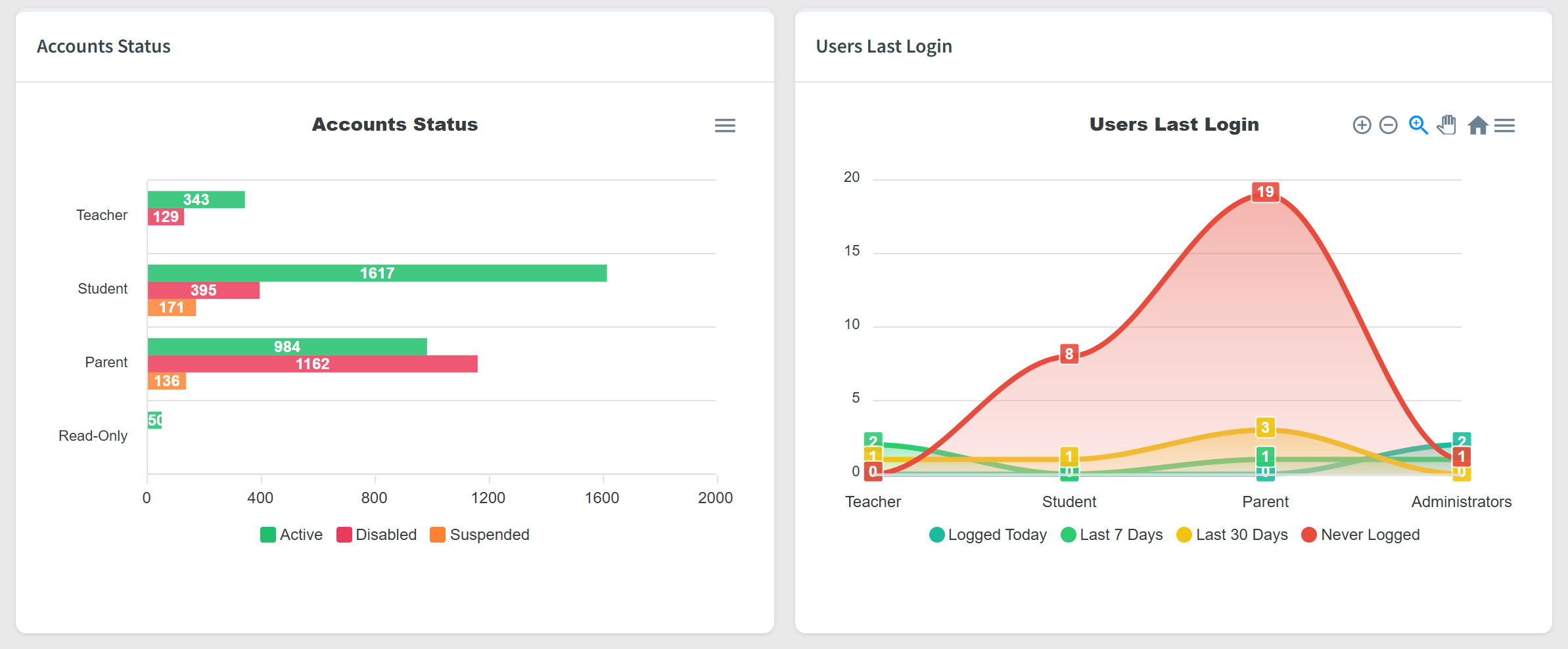
The Users Request Log records every request with the page and record it touched, whether it came from a browser, the API or an AI assistant, and who was signed in as whom. Passwords and tokens are masked, and the last 90 days stay searchable.

See it in SCL

SCL Today

Access, Sign-In and Accountability

Groups Limited by Level

A group can be limited to the educational levels it serves, and SCL applies the limit everywhere: lists, reports, messages and admissions. A primary coordinator works with primary students only, with no separate setup per screen.

Additional Groups

Staff who work for more than one department hold Additional Groups beside their main group, and SCL merges what the groups grant into one workspace where their levels allow it. Nobody needs a second account for a second job.

Passkeys and Two-Factor

Users sign in with a passkey, an emailed sign-in link or a password, and two-factor authentication can be enforced for a whole group, such as administrators. Each person sees where they are signed in and can sign out their other devices.

Google, Microsoft Sign-In

Schools can turn on sign-in with Google or Microsoft accounts beside the Edurealm ID, on the web and in the SCL app. People sign in with an account they already use and link it from their own Security Settings.

Family Account Suspension

Staff suspend a parent alone or the whole family after seeing exactly who is affected, and the school decides which areas a suspended account loses, such as the gradebook or report card, and the message it shows.

Login As User

Administrators can sign in as a user to see SCL exactly as they do, heads of department can be allowed to do the same for teachers, and parents for their own children. Every request made that way is logged with the name of the person really behind it.

Connected modules

Works Hand in Hand With

These modules share the same student record, so what happens in one shows in the others.

See Exactly What Each Role Can Access

Walk through the Access Control List with our team, set permissions for administrators, teachers, students and parents, and see how custom roles keep sensitive data in the right hands.