
School Name and Website
Set your school's name and website once in the Branding screen, and every part of SCL picks them up. Parents see your school's name on the login page, on emails, and at the top of each printed report card.
Customization
Customization is where an administrator makes SCL carry your school's identity. Set the school name and website, upload the School Logo, Cover Logo and School Icon, and rewrite the wording of every automated email, private message, and SMS the system sends to families.
Set your school's name and website once in the Branding screen, and every part of SCL picks them up. Parents see your school's name on the login page, on emails, and at the top of each printed report card.
Upload a School Logo for the sign-in pages, emails, letterheads and the header of every printout, and a Cover Logo for report card covers and the back of the student ID card. Any shape works, and you crop and rotate it before you save.
Upload a square School Icon, and it appears beside the messages SCL sends and as the badge on the student ID card.
Rewrite the subject and body of any automated email, in-app message or SMS in a visual editor, and drop in merge fields like the recipient's name or your school logo. Each notification keeps its Email, SMS and Message channels on one page.
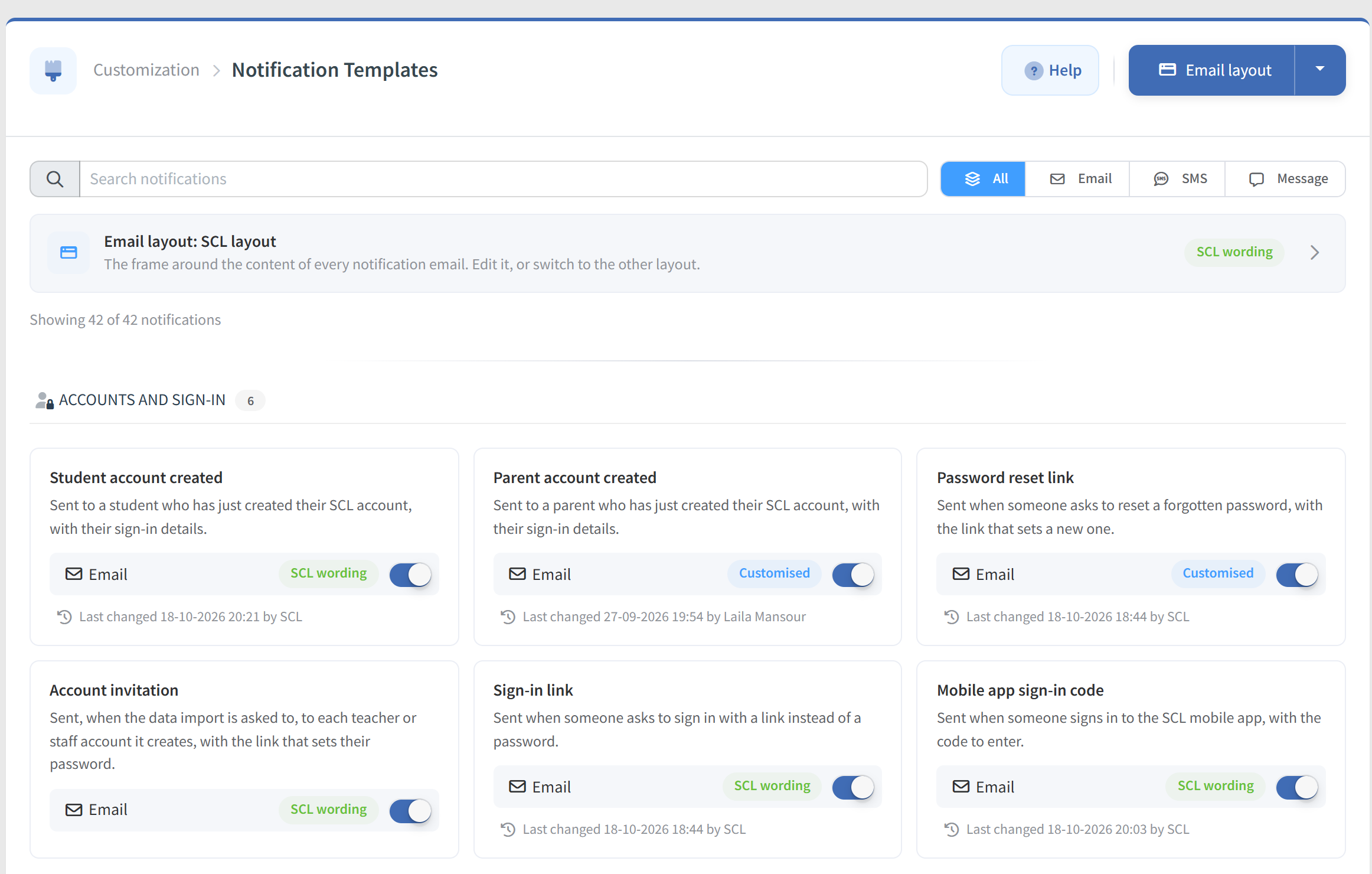
Notification templates for every email, SMS and in app message SCL sends
SCL Today
Notification Templates lists every email, SMS and in-app message SCL sends for the school, grouped by area, with who receives it and an on or off switch for each channel. Administrators find and change any notice in seconds.
Each notification previews on example values, as a desktop or phone email and in light or dark mode, and problems such as a missing sign-in link are flagged before it saves. Send yourself a test first, so families only receive wording someone has checked.
Each save, reset and import adds a version to a template's History, where an administrator compares any version with the current one and restores it. Reset to SCL wording brings back the original, and all templates export as one file to share with another school.
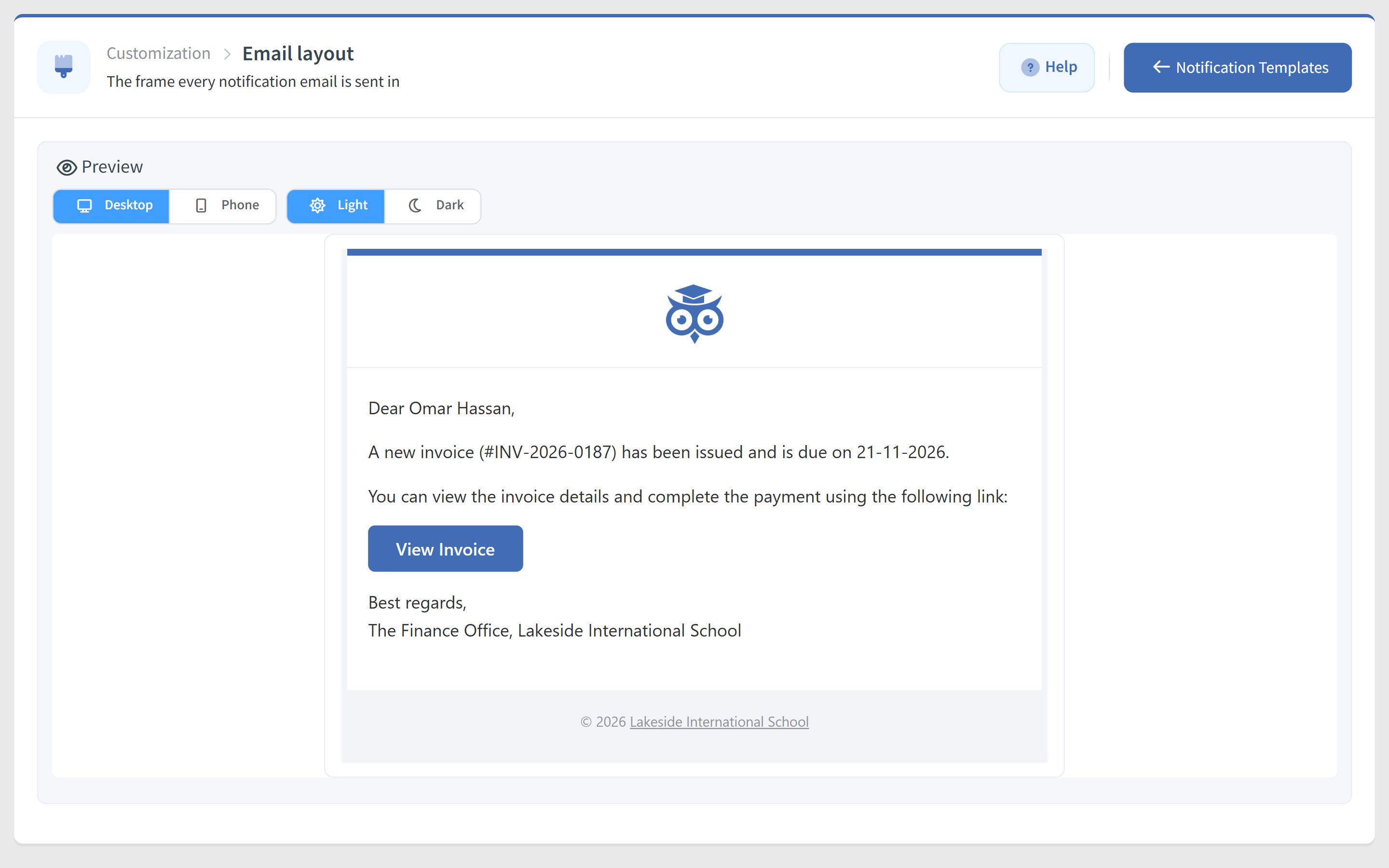
Every notification email is sent inside one layout: your logo on a card in your school colour, the message, and your school's name beneath it. It reads well on a phone and in dark mode, and a school can edit its HTML or switch back to the classic layout.
Set an email's text direction to right to left and the editor, the preview and the email sent all follow, so Arabic wording lines up properly. For SMS, one switch allows Arabic characters, and a counter shows how many messages the text will take.
Set one header and footer for the school's official documents, or give transcripts, report cards and the admission form their own, with start, centre and end slots, an accreditation logo and page numbers. A live preview shows exactly what will print, Arabic lines included.
Every user sets SCL to a light or dark theme, or lets it follow their device automatically. The choice is personal and saved to each account, so teachers, parents, and students each read the interface the way that suits them.
SCL ships in English, Arabic, French, German, and Spanish, and an administrator sets the school's default language. Arabic turns the entire interface right to left, so the app fits schools across the region, not only English speaking ones.
Rename the skills layer to match your programme, whether you call it ATL, Competencies, or Skills, and set it separately for each school division. The label you choose shows up everywhere skills appear, so the language matches what your teachers already use.
Build the grade boundaries, values, and assessment types each division uses, so SCL scores results against your policy rather than a fixed scale. Report cards then run the same calculation, keeping a grade consistent from the gradebook to the printout.
Assign each grade the report card layout that fits it, from K-12 styles to IB PYP and MYP formats. A coordinator sets the template once, and every card printed for that grade follows the right design.
Every user resizes, reorders, and closes the widgets on their own dashboard, and switches a chart to the shape they read best. What each person sees first is theirs to arrange, so the home screen stays useful instead of fixed.
Connected modules
These modules share the same student record, so what happens in one shows in the others.
Set your own grading scales, weight assessment types per subject and score IB criteria in one gradebook, with a live earned grade for every student.
Generate American, British, Egyptian and IB report cards from the grades teachers already enter, for a whole quarter at once, with no re-keying.
Private messages, class discussions, newsletters to any audience and classroom moments, for staff, parents and students, with read receipts and recall.
One SCL app for parents and students: each child's grades, attendance, report cards, invoices, pickup pass and photos from class, on the App Store and Google Play.
Connect single sign-on, online payment gateways, timetable software and locked-down exam browsers, so SCL fits the tools your school already runs on.