
Skip to the content

Appointments

Meet the Teacher Without the Phone Calls

Booking five minutes with a teacher shouldn't take three phone calls and a note at the bottom of a school bag. Appointments gives every teacher one place to publish the times they are free, and gives every parent a live view of what is genuinely open, up to three weeks ahead, on any device, in their own language.

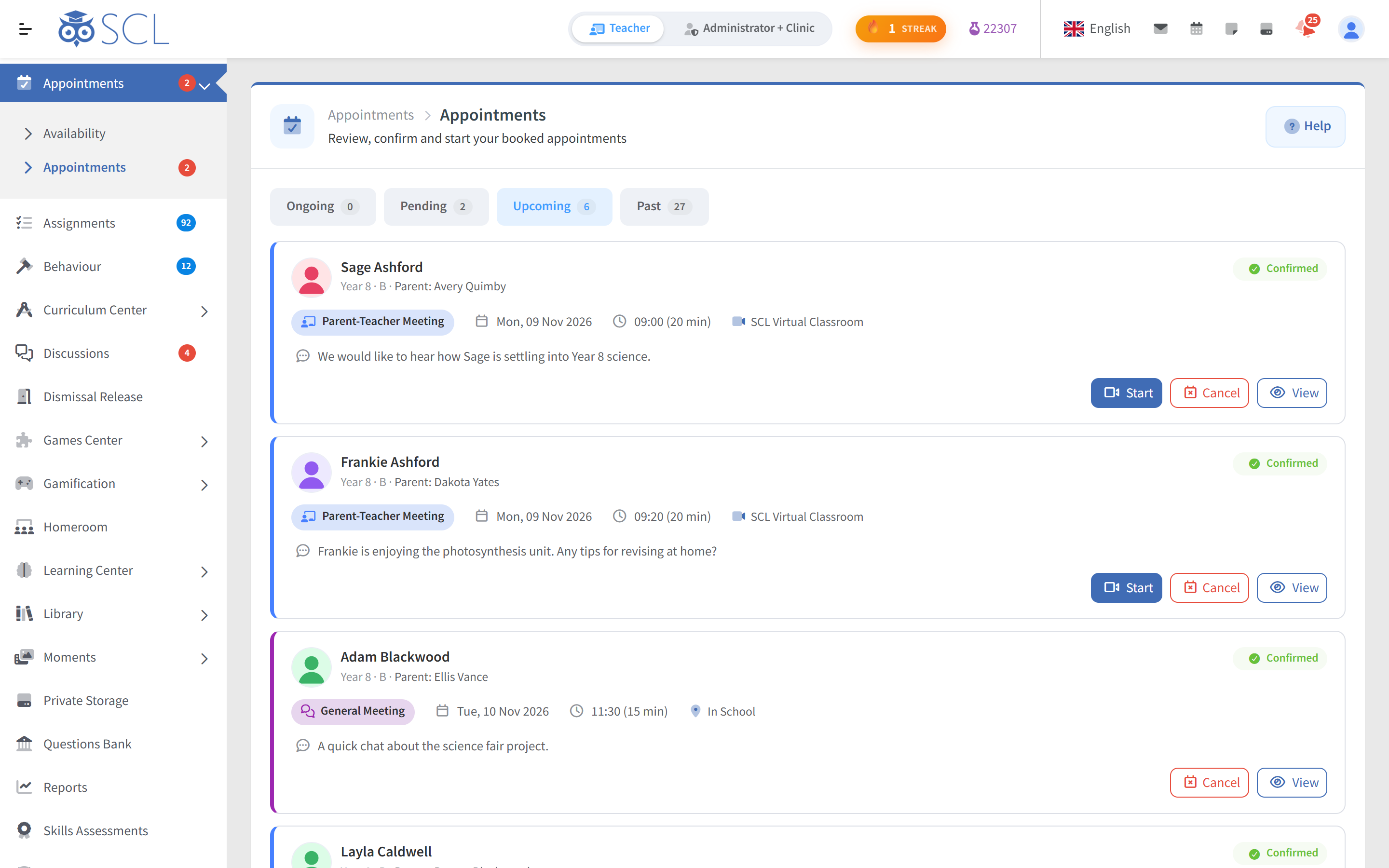
A teacher's upcoming appointments in SCL: parent meetings with the student, date, time, length, location or virtual classroom, the parent's note and buttons to start or cancel.
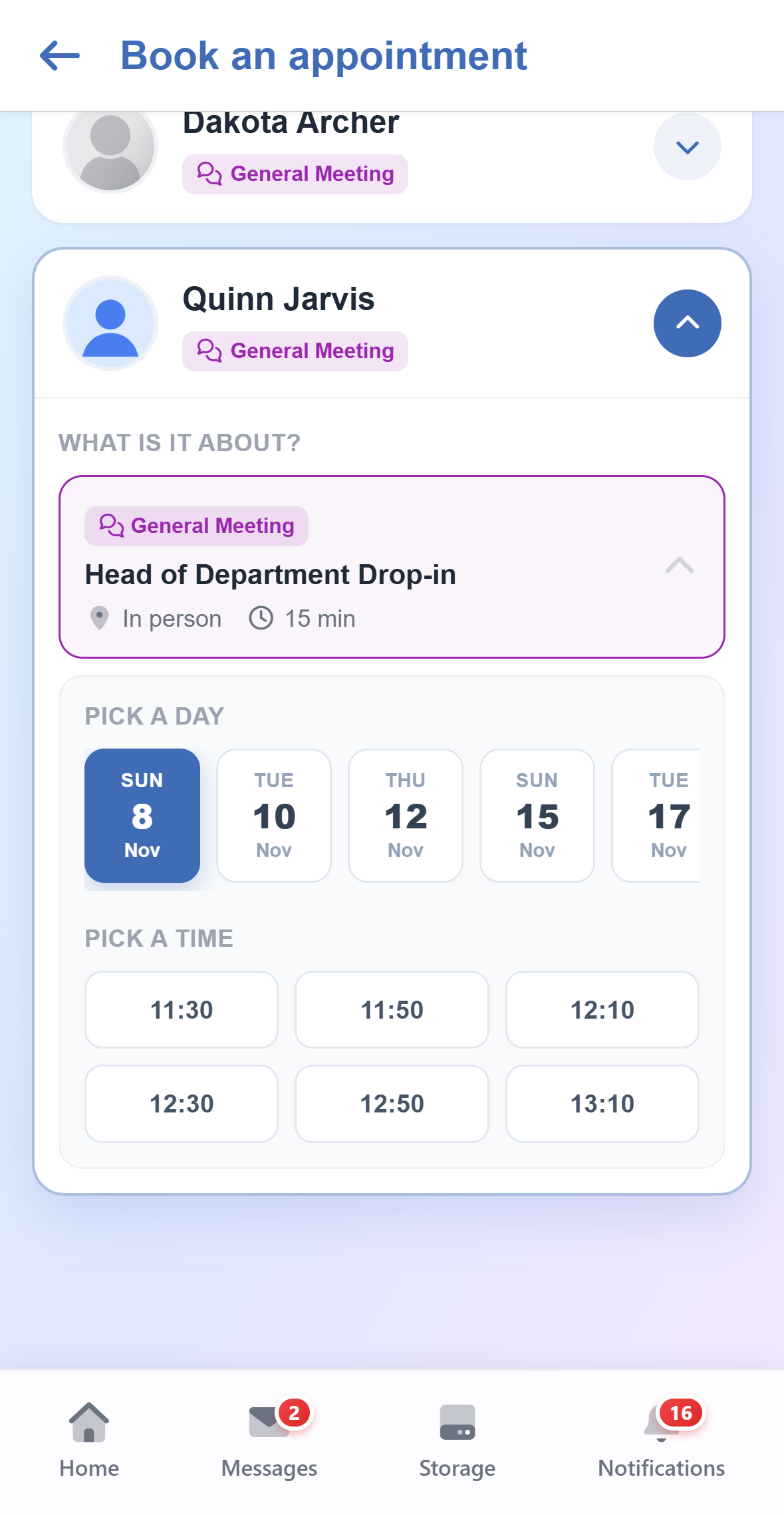
Booking a meeting in the SCL app on a phone: the parent chooses a teacher and meeting type, then picks a day and a free time slot.

A parent picks a slot, chooses which child it is about, and adds a line about what they would like to discuss. The teacher confirms it in one click, or lets SCL confirm it automatically. From that moment both sides are looking at exactly the same booking: the same time, the same place, and if it is online, the same link.

Because Appointments is part of SCL rather than a calendar bolted on the side, it already knows who teaches whom. Parents only ever see the staff they are entitled to meet, teachers cannot be double-booked across their own time windows, and the school keeps a complete record of every meeting requested, held, or cancelled.

How it works

Set your hours once. SCL does the rest.

Publish your hours once

A teacher picks a window, say Monday and Wednesday from 10:00 to 11:00, then sets how long each meeting runs, how much breathing room to leave afterwards, and how many parents may book that day. SCL turns that into open slots automatically and keeps repeating it, every chosen weekday, until the date range runs out.
One slot, one parent

The instant a slot is taken it disappears for everyone else, and that time is blocked across every other window the teacher has open, so a Progress Review can't collide with a Parent-Teacher Meeting. A minimum-notice rule keeps last-minute bookings from landing while a teacher is already on their way to class.

Approve, or auto-confirm

Requests arrive in the teacher's My Appointments, under Ongoing, Pending, Upcoming and Past, with a Ready to start now card above the tabs when a meeting is about to begin. Confirming or declining takes one click, or turn on Auto-confirm and every booking is accepted the moment it is made.

Meet in a room, or online

Choose an in-person room, paste a Zoom, Teams or Meet link, or use SCL's own Virtual Classroom. The SCL room is created the moment the teacher hits Start, opens only to that one parent, lasts exactly as long as the slot, and is never recorded. Close it and the meeting marks itself Completed.

Plan a whole year group

Parents' evening approaching? The Availability Planner lets an administrator publish the same window across every teacher in an educational level in one go, with no chasing and no gaps. Planned windows appear on the teacher's side marked "Managed by school", so nobody edits them by accident.

Nobody is left guessing

SCL tells the right person at the right moment: the teacher when a meeting is requested, booked or cancelled; the parent when it is confirmed, declined or cancelled, when its place changes and when it is ready to join online. Confirmations and cancellations come from the school by message and email, and by SMS where the school turns it on, with the date, the child, the place and the join link already filled in.

See it in SCL

SCL Today

More Control Over Every Booking

Cancel a Whole Evening

Each plan in the Availability Planner has a Bookings board to filter by teacher, day or name. Cancel one meeting, a selection or all of them with a message every family sees beside its meeting, and lock the plan so freed slots are not taken again.

Lock New Bookings

A Lock button on each availability and each school plan stops new bookings at once, on the web and in the app. Every meeting already booked keeps its date, status and room, nobody is notified because nothing has changed for them, and Unlock reopens booking.

A Booking Window You Set

Give any availability a reservation period: the date and time bookings open and close, separate from when the meetings run. Hold parent evenings all through March while taking bookings for one week in February; outside that period parents are not offered it.

The Right Families Only

Limit an availability or a plan to chosen educational levels, and only parents with a child in those levels see it. Booking a teacher, a parent picks one of the children that teacher actually teaches, already chosen when there is only one.

In the Parent's Calendar

Once a meeting is confirmed, parents add it to their phone's calendar from the SCL app, with the teacher's name, time, length and place already filled in. The phone asks them to confirm, so nothing is added behind their back, and pending requests are never offered.

No Parent Booked Twice

Once a parent books 09:00 to 09:20 with one teacher, that time shows as busy on every other teacher's slots, naming who they are already seeing. Families with several children plan a whole parents' evening on the web or in the app without a clash.

Control and oversight

The school stays in charge

See it in the numbers

Reports › Communication › Appointments shows pending, upcoming, completed, cancelled and declined meetings for every teacher over any date range, with drill-down to the individual booking and export to Excel, CSV or PDF. Heads of department see the staff they are responsible for. The admin dashboard adds a 90-day status breakdown and a 7-day booking trend.

Your school, your rules

Meeting types like Parent-Teacher Meeting, Progress Review and General Meeting are yours to rename, recolour or extend. Each user group has its own switch for whether parents may book its members, such as the leadership team, separate from Parent Direct Messaging. And parent booking stays switched off until you decide the school is ready.

Connected modules

Works Hand in Hand With

These modules share the same student record, so what happens in one shows in the others.

See How Your School Books Parent Meetings

Walk through the availability windows, the Pending and Upcoming request lists and the Appointments report with our team, and see how a parent books a meeting without one phone call.